줌 회의를 녹화해서 아이패드로 가져왔는데, 이상하게 화면만 나오고 소리가 하나도 안 나올 때가 있다. 마치 우주선을 타고 별나라 친구랑 통신하는데, 화면은 보이는데 목소리만 슉 사라져버린 느낌이다. 나는 처음에 “아이패드 고장인가?” 했는데, 알고 보니 아이패드가 소리의 언어를 못 알아듣고 있었던 것뿐이었다.
⭐ 핵심단어: 코덱 — 파일의 비밀 언어
코덱(codec)은 어렵게 들리지만, 사실 파일이 말하는 언어라고 보면 된다.
예를 들어:
• 어떤 파일은 한국어
• 어떤 파일은 영어
• 어떤 파일은 외계어(?)
아이패드는 한국어(AAC 같은 코덱)는 잘 알아듣지만, 외계어(OPUS 코덱)는 “이게 무슨 말이지…?” 하고 멈춰버린다.
줌은 녹화할 때 소리를 OPUS라는 특이한 언어로 저장하는데, 아이패드는 그 언어 학원을 안 다녔기 때문에(!) 이해를 못 한다. 그래서 화면은 나오는데 소리는 꽉 잠긴 보물상자처럼 열리지 않는다.
🌙 문제점:
아이패드는 OPUS를 못 읽는다
아이패드는 다음 언어들만 잘 읽는다.
• AAC
• MP3
• WAV
• ALAC
하지만 줌 녹화 파일은 소리가 OPUS로 저장된 경우가 많다.
즉:
• 영상 = “알아듣는 언어”
• 소리 = “초면인 언어(OPUS)”
이렇게 되면 아이패드는 영상을 보여주지만, 소리는 “미안… 난 이 말 몰라” 상태가 된다.
🌟 해결 1: 번역기 사용 — 코덱 변환
이 방법은 줌 파일의 소리를 ‘아이패드가 이해하는 언어(AAC)’로 번역해주는 방식이다.
번역방법은 이렇다.
1. 노트북이나 PC에서 줌 녹화 파일을 연다.
2. CloudConvert 같은 사이트에서 OPUS → AAC로 변환한다.
3. 변환된 파일을 아이패드로 다시 보내면 소리가 바로 살아난다.
마치 외계어로 된 문장을 한국어로 번역하니 드디어 알아듣는 것과 똑같다.
🌟 해결 2:
똑똑한 플레이어 앱 사용 — VLC
아이패드는 기본적으로 OPUS를 잘 모르지만,
VLC, Infuse 같은 특별한 플레이어 앱은 거의 모든 언어(코덱)를 읽을 줄 안다.
즉:
• 아이패드는 OPUS를 몰라도
• VLC는 OPUS를 완벽하게 읽음
그래서 같은 파일을 열어도 VLC에서는 소리가 멀쩡하게 들린다.
이건 좀 더 똑똑한 친구를 부르는 느낌이다.
“아이패드야, 이 언어 못 읽지? 그럼 내가 읽어줄게!” 하는 느낌.
🌟 해결 3:
앞으로는 줌에서 언어를 맞춰 녹화
다음 녹화부터 아예 언어가 안 헷갈리게 만들 수도 있다.
방법은 간단하다.
1. Zoom 데스크톱 앱 열기
2. Recording(녹화) 설정 들어가기
3. 표준 오디오(AAC) 체크하기
이렇게 하면 줌이 처음부터 아이패드가 알아들을 언어로 녹음해준다.
즉, 다음부터는 통역기 없이도 바로 소리가 들린다.
🌌 마무리:
우주에서도, 파일에서도 언어가 중요하다
줌 녹화가 아이패드에서 소리가 안 들렸던 이유는
“고장”이 아니라
**“언어가 달라서”**였다.
영상은 아이패드가 이해하는 언어로 저장돼 있었지만,
소리는 아이패드가 모르는 OPUS라는 우주 언어였던 것.
하지만 언어만 맞춰주면
줌 파일은 바로 말하기 시작한다.
결국 기술도 사람처럼 서로의 언어를 이해할 때 비로소 소통이 완성된다.
#Zoom녹화
#아이패드소리안나옴
#코덱문제
#OPUS코덱
#AAC변환
#VLC재생방법
#온라인수업팁
#파일재생오류
#아이패드문제해결
#교육기록저장
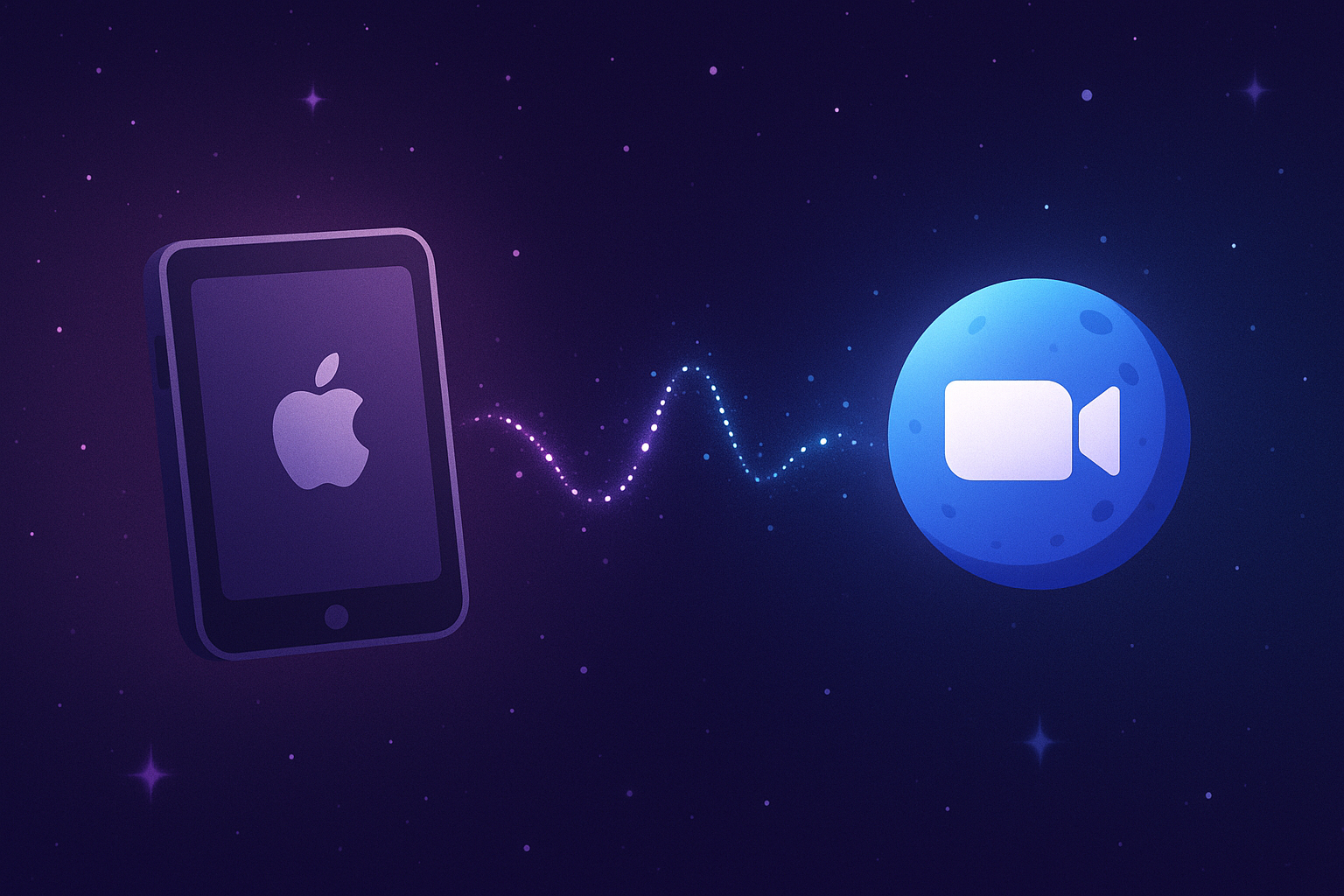
🪐 The Space Signal Your iPad Couldn’t Hear — Why Zoom Audio Disappears
You bring a Zoom recording to your iPad, press play, and… only the video comes out. The screen works perfectly, but the audio is completely silent. It feels like you’re riding a spaceship, talking to a star-friend, and suddenly their voice goes poof into space. At first, I thought, “Is my iPad broken?”
But the truth was simple: the iPad just didn’t understand the audio’s language.
⭐ Key Term: Codec — The Secret Language of a File
A codec may sound difficult, but it’s really just the language a file uses.
For example:
• Some files speak Korean
• Some speak English
• Some speak… alien language(?)
Your iPad understands Korean-type languages like AAC.
But when it meets OPUS — Zoom’s favorite alien language — the iPad freezes and says,
“What on earth is this…?”
Zoom records its audio using OPUS, and since the iPad never went to “OPUS Language School,” it can’t understand it.
So the video plays, but the audio stays locked like a treasure chest with no key.
🌙 The Issue:
The iPad Can’t Read OPUS
Here are the audio languages the iPad does understand:
• AAC
• MP3
• WAV
• ALAC
But Zoom often saves its audio in OPUS.
So you get this situation:
• Video = “Language I understand!”
• Audio = “Stranger I’ve never met…”
When that happens, the iPad will show the video but whisper,
“Sorry… I don’t know this language,”
and the sound disappears.
🌟 Fix 1:
Use a “Translator”
— Convert the Codec
This method translates the audio into a language the iPad understands (AAC).
Here’s how:
1. Open the Zoom recording on a laptop or PC.
2. Use CloudConvert or another tool to convert OPUS → AAC.
3. Send the converted file back to your iPad — and the audio plays instantly.
It’s just like translating an alien sentence into your own language and finally understanding it.
🌟 Fix 2:
Use a Smart Player App — VLC
The iPad itself doesn’t understand OPUS,
but special players like VLC and Infuse speak almost every language.
So:
• iPad: “I don’t know OPUS…”
• VLC: “Relax. I do.”
Open the same Zoom file in VLC, and boom — the sound works perfectly.
It feels like calling a genius friend who says,
“Don’t worry, I’ll read it for you.”
🌟 Fix 3:
Record in a Matching Language Next Time
You can also prevent the problem before it happens.
Here’s how:
1. Open Zoom on your desktop.
2. Go to Recording settings.
3. Check the option for standard audio (AAC).
From then on, Zoom will record in a language the iPad already understands — no translators needed.
🌌 Final Thought: In Space and Tech, Language Matters
The missing audio wasn’t a “bug.”
It was simply a language mismatch.
The video spoke a language the iPad understood,
but the audio was speaking OPUS — a space language the iPad had never learned.
Once you match the languages, the Zoom file instantly starts speaking again.
Just like people, devices communicate best when they understand each other’s language.
#ZoomRecording
#iPadAudioIssue
#CodecMismatch
#OPUSCodec
#AACFormat
#VLCplayer
#FilePlaybackFix
#EdTechTips
#RemoteLearningTools
#SpaceMetaphorBlog
🎧 Sound Bite Corner
✨ 오늘 글의 핵심 단어, 소리로 익혀볼까요?
codec
• 뜻: 소리나 영상을 압축하고 풀어주는 방식
• 강세: CO-dec
• IPA: /ˈkoʊdɛk/
• 훈련문장:
• This video won’t play because the codec is not supported.
• A different codec can fix the audio problem.